
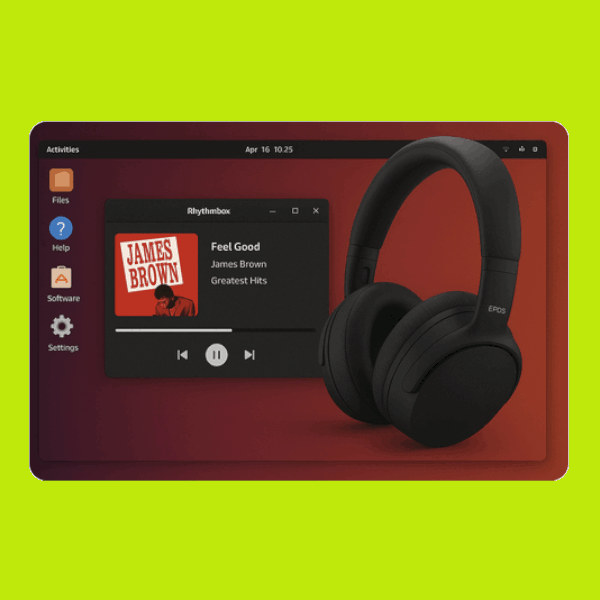
The first time I connected the EPOS ADAPT 360 headset to my Ubuntu 22.04 desktop, no sound played. After investigating the issue, I found a solution.

The problem
I intended to connect the EPOS ADAPT 360 headset to my Ubuntu 22.04 desktop using the supplied USB cable, so I could enjoy my favorite music without disturbing my roommates. To my surprise, the headset didn’t override the desktop speakers when I first plugged it in.
The Solution
🧩 Step 1 — Running the lsusb command.
The lsusb command confirmed the headset was recognized — its LED glowed blue as it came to life.
Before plugin:
$ lsusb
Bus 002 Device 001: ID 1d6b:0003 Linux Foundation 3.0 root hub
Bus 001 Device 003: ID 413c:301a Dell Computer Corp. Dell MS116 Optical Mouse
Bus 001 Device 002: ID 413c:2113 Dell Computer Corp. KB216 Wired Keyboard
Bus 001 Device 001: ID 1d6b:0002 Linux Foundation 2.0 root hub
After plugin:
$ lsusb
Bus 002 Device 001: ID 1d6b:0003 Linux Foundation 3.0 root hub
Bus 001 Device 003: ID 413c:301a Dell Computer Corp. Dell MS116 Optical Mouse
Bus 001 Device 002: ID 413c:2113 Dell Computer Corp. KB216 Wired Keyboard
Bus 001 Device 028: ID 1395:0182 Sennheiser Communications EPOS ADAPT 360
Bus 001 Device 027: ID 0a12:4010 Cambridge Silicon Radio, Ltd
Bus 001 Device 001: ID 1d6b:0002 Linux Foundation 2.0 root hub
👍 The power indicator on the USB headphone is lit, which means:
- The device is receiving power from USB correctly.
- It’s being recognized at least as a USB peripheral (since
lsusblists it).
So, the issue is almost certainly software / audio routing, not hardware. Let’s narrow it down.
🧩 Step 2 — Confirm Ubuntu detects it as an audio device.
$ aplay -l
**** List of PLAYBACK Hardware Devices ****
card 0: PCH [HDA Intel PCH], device 0: ALC3234 Analog [ALC3234 Analog]
  Subdevices: 0/1
  Subdevice #0: subdevice #0
card 0: PCH [HDA Intel PCH], device 3: HDMI 0 [HDMI 0]
  Subdevices: 1/1
  Subdevice #0: subdevice #0
card 0: PCH [HDA Intel PCH], device 7: HDMI 1 [HDMI 1]
  Subdevices: 1/1
  Subdevice #0: subdevice #0
card 0: PCH [HDA Intel PCH], device 8: HDMI 2 [HDMI 2]
  Subdevices: 1/1
  Subdevice #0: subdevice #0
card 1: E360 [EPOS ADAPT 360], device 0: USB Audio [USB Audio]
  Subdevices: 1/1
  Subdevice #0: subdevice #0
✅ This means:
The line:
card 1: E360 [EPOS ADAPT 360], device 0: USB Audio [USB Audio]
indicates that the kernel driver (snd_usb_audio) is working.
The system does see the USB headset (EPOS ADAPT 360) as an audio device — the Linux kernel driver snd_usb_audio is loaded and working.
So, the problem is not hardware or driver-level — it’s likely audio routing or default output selection.
Let’s fix that.
🧩 Step 3 — See if PipeWire/PulseAudio sees it.
$ pactl list short sinks
0 alsa_output.pci-0000_00_1f.3.analog-stereo module-alsa-card.c s16le 2ch 44100Hz RUNNING
The output of pactl list short sinks shows no EPOS entry — a key detail. 👍
However:
lsusbconfirms the EPOS headset is connected.aplay -llists it ascard 1: E360 [EPOS ADAPT 360].- But
pactl list short sinksdoes not include any EPOS-related sink.
This indicates that the ALSA (kernel) driver is functioning correctly, but PipeWire or PulseAudio isn’t creating an audio sink for the device — in other words, the sound server isn’t exposing it to the desktop environment.
Let’s fix that systematically.
🧩 Step 4 — Restart the audio stack cleanly.
$ systemctl --user restart pipewire pipewire-pulse wireplumber
Failed to restart pipewire-pulse.service: Unit pipewire-pulse.service not found.
Failed to restart wireplumber.service: Unit wireplumber.service not found.
These error messages provide a key clue: the system isn’t using PipeWire’s PulseAudio compatibility layer, or the service name differs—both common scenarios on Ubuntu 22.04 depending on your upgrade history.
Let’s identify your setup and resolve the missing service.
🧩 Step 5 — Check which sound server you’re running.
Here are the possibilities:
Output: Server Name: PulseAudio (on PipeWire 0.3.x)
Meaning: ✅ You’re on PipeWire with PulseAudio layer.
Output: Server Name: pulseaudio
Meaning: You’re still on classic PulseAudio.
Output: Connection failure: Connection refused
Meaning: The audio server isn’t running at all.
Run the check:
$ pactl info | grep "Server Name"
Server Name: pulseaudio
✅ This means the system is still using classic PulseAudio rather than PipeWire. That’s expected — Ubuntu 22.04 shipped with PulseAudio by default, and upgrades don’t automatically switch to PipeWire.
We’ll resolve the issue within the PulseAudio setup, which is simpler in this case.
🧩 Step 6 — Restart PulseAudio cleanly.
Sometimes the PulseAudio sound server doesn’t pick up new USB devices properly.
pulseaudio -k→ Kills the current PulseAudio process (if running). It’s a graceful shutdown.pulseaudio --start→ Starts a new PulseAudio process (if not already running). If PulseAudio is already active, this command does nothing.
🧠 Why are these commands useful:
- Helps apply configuration changes.
- Resolves issues with missing audio sinks or devices.
- Refreshes the sound server after plugging in new hardware.
The clean restart:
$ pulseaudio -k
$ pulseaudio --start
Check again if PipeWire/PulseAudio sees the headset:
$ pactl list short sinks
0 alsa_output.usb-1395_EPOS_ADAPT_360_A003110205229413-00.analog-stereo   module-alsa-card.c s16le 2ch 48000Hz SUSPENDED
1 alsa_output.pci-0000_00_1f.3.analog-stereo module-alsa-card.c s16le 2ch 44100Hz SUSPENDED
Perfect — 🎉The EPOS ADAPT 360 entry is present!
The EPOS ADAPT 360 is now fully working, which means:
- The ALSA driver (
snd_usb_audio) loads fine. - PulseAudio detects it.
- You’ve got working audio output.
Back to the tutorial list.
Author
Categories